
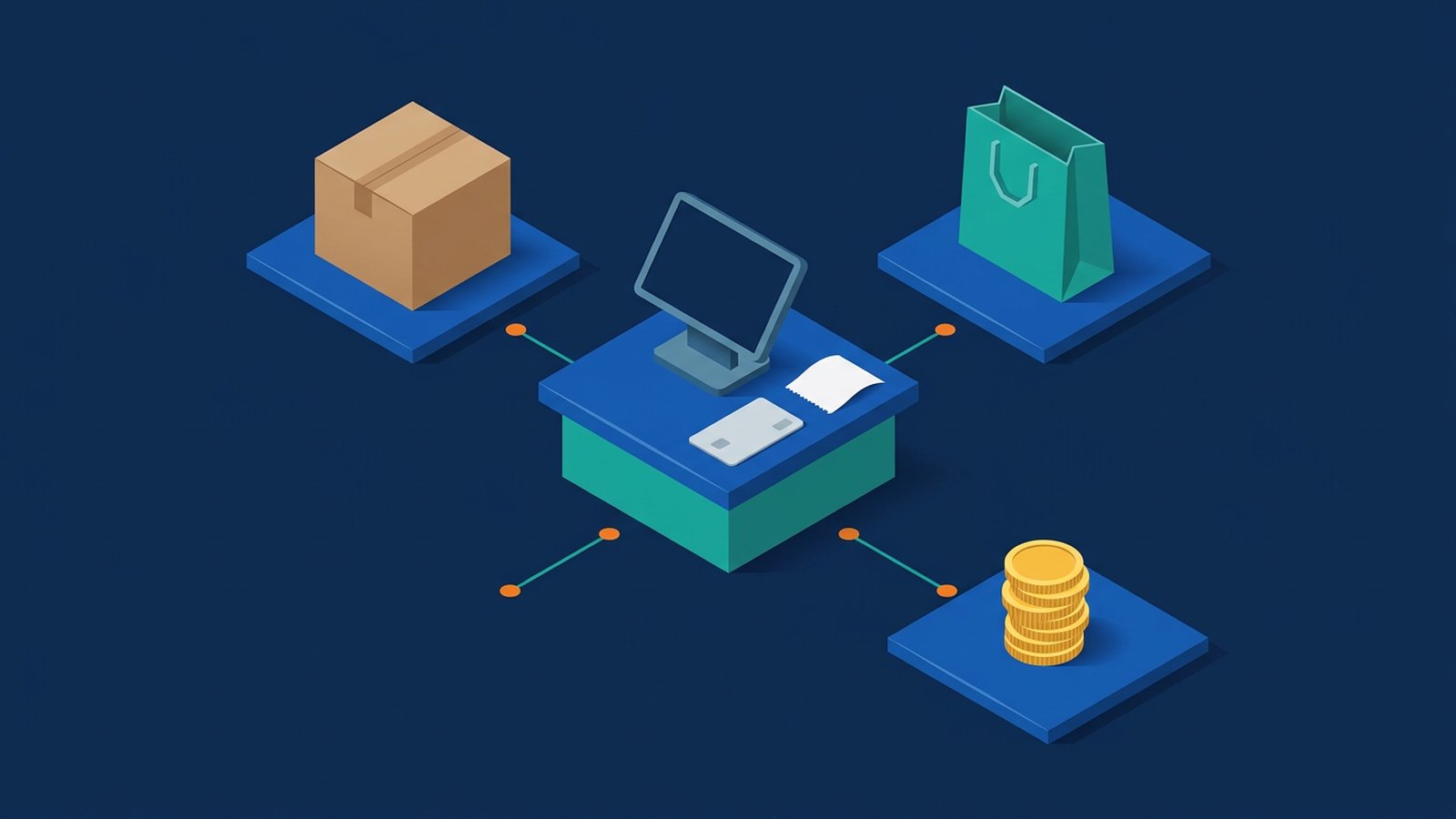
A point of sale (POS) system is the software and hardware that records a sale at the counter: what was sold, at what price, how it was paid and, in many setups, whether stock and a receipt were updated from the same record. In a shop, restaurant or clinic, staff use it when a customer pays, rather than filling in a spreadsheet afterwards.
For a Hong Kong SME, a POS usually matters because sales, payments and stock need to stay in step across one or more counters.
What a POS system records
Each transaction typically includes the items or services, quantities, prices, discounts, the payment method and the time of the sale. Many systems also store a receipt number so a refund or exchange can be traced to the original sale.
What a POS system typically covers
Most products combine some of the following:
- Sales and payments: recording the sale and how it was paid, for example by card, FPS, a stored-value wallet or cash. What is supported depends on the product and the payment provider.
- Receipts: printed or digital receipts from the same transaction.
- Product catalogue: names, prices, options and tax settings where they apply.
- Stock: deducting inventory when an item is sold.
- Staff logins: each cashier or waiter signs in, so sales and permissions can differ by person.
- Reports: sales by day, item, staff member or payment method.
Table maps and kitchen tickets are common options in food and beverage, not a given. Appointment or membership modules appear in some clinic systems, not all.
POS, cash register, ecommerce checkout and ERP: what is the difference?
A cash register totals a sale and holds cash, but may not keep product, customer or stock records. A POS captures the sale at the counter and usually keeps those records. An ecommerce checkout takes payment in an online shop, not at the counter; the two can share a catalogue and stock, but they are different surfaces. Online card payments often use their own checks, such as 3D Secure.
An ERP system often sits behind the counter, covering purchasing, warehouse stock and finance. The POS records what was sold; the ERP may later reflect that sale in inventory and the accounts. A CRM system sits around the customer: contacts, follow-ups and membership history.
Cloud POS, a terminal, or on-premise?
Cloud POS runs in the provider's service, typically from a tablet or a dedicated terminal, so a manager off site can see catalogues and reports. On-premise or terminal-based POS keeps more of the software on a local machine, which can help through a network outage if there is a genuine offline mode and a clear way to sync later.
Connecting a POS to your other systems
A POS rarely stays alone. Through APIs, it can exchange data with accounting software, an online shop, inventory tools, or a booking and membership system. This is system integration, and it allows workflow automation, such as a counter sale updating stock and later appearing in the accounts. If you plan to take FPS, read what to settle before connecting FPS or e-payment to a booking system. Decide early which system owns product codes, prices and customer details.
Access and data security
A POS holds sales, and often customer and payment-related data:
- Use role-based access control so cashiers can take sales and issue refunds only when that is part of their job; keep reports and settings with a manager.
- Turn on multi-factor authentication for manager and admin accounts, especially if the POS is reachable over the internet.
- Remove access promptly when someone leaves.
- Card data must be handled carefully. Payment providers and acquirers set their own requirements; follow those requirements and your provider's guidance.
How to plan and choose a POS
- Data ownership: confirm you can export product, customer and sales records.
- Receipts and refunds: check how a receipt is reissued and how a refund is linked to the original sale.
- Offline mode: if the shop cannot pause when the network drops, ask how sales are stored and synced.
- Reports you actually need: daily takings, item mix or tax summaries.
- Payments and hardware: confirm which methods and devices work in your setting. Fees and setup rules should come from the payment provider, not a sales page.
Example scenario: a small café takes payment on a standalone card machine and tracks stock in a notebook. After moving to a POS, each sale records the item, payment and stock movement together. This is a hypothetical example, not a description of any specific shop.
Frequently asked questions
Is a POS only for retail shops?
No. Restaurants, cafés, clinics and service counters also use POS systems to record what was sold or billed and how it was paid.
Can one POS run both the counter and an online shop?
Some products include both; others connect to a separate online shop. What matters is whether catalogue, stock and orders stay consistent.
Do we still need accounting software or an ERP?
Usually, yes, or at least a way to get sales totals into the accounts. A POS captures the sale; accounting software or an ERP still handles the ledger, purchasing and, in many businesses, warehouse stock. The useful question is how the two will share data.
For custom tools around a POS, see our business systems and platforms services. To connect a POS with accounting or ecommerce software, see system integration and automation.